
Congratulations on registering to attend the DHIS2 Annual Conference!
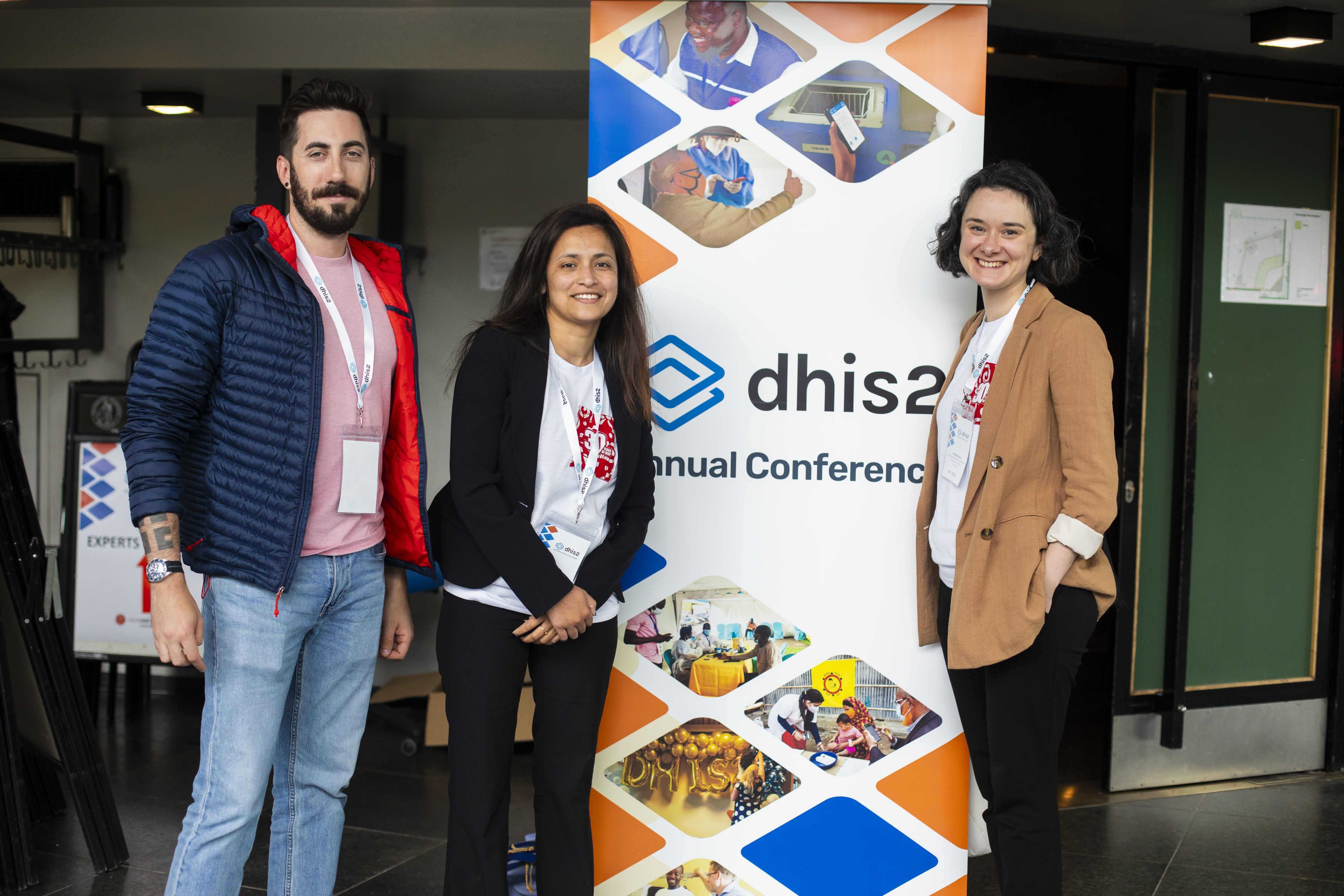 We are excited that you will be joining us in Oslo to participate in our biggest event of the year. This Attendee Guide contains some important information that will help you prepare for the conference.
It is designed to help you get the most out of attending the conference-either in person or online-and will make it easy to share your experiences on social media.
To get started, please follow the steps below:
Step 1
Please log on to our conference registration site and complete your profile. At minimum, please upload your photo into your profile, and add your professional role and your organization. This will help your fellow attendees to connect with you during the conference.
Step 2
Use our social media tools! We encourage you to join us in posting on social media, to create excitement about the event. Here, you will find some graphics, a video, and suggested posts that you can edit and customize to fit your own personal style.
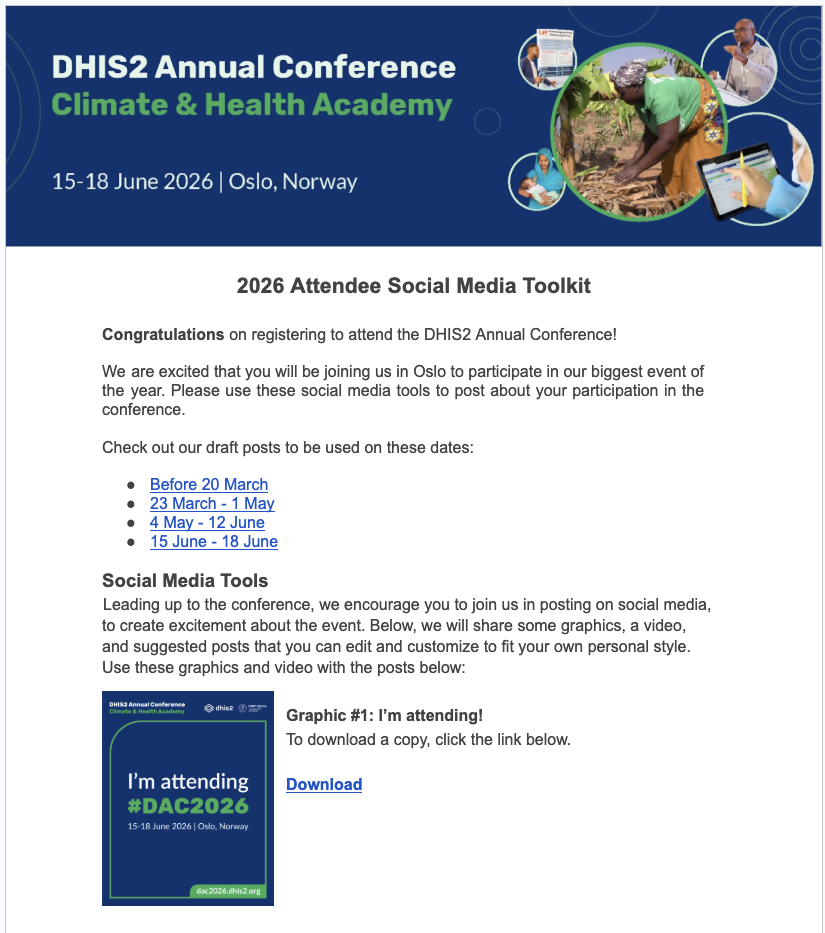 Social Media Toolkit
Step 3
Take a look at the agenda and add sessions to your conference calendar.
In-person attendees can create their own customized conference schedule by selecting the sessions they would like to attend as a participant. Just click on any session and choose "Add to my Schedule."
Many of our parallel sessions will be available on Zoom, and plenary sessions will be live-streamed. The Zoom links for each of the sessions will be included in the conference agenda. If you are unable to attend one of the sessions you are interested in, you will be able to click on the Zoom link and join the session online.
Step 4
Download the Dryfta app from the App Store or Google Play to access important event information and messaging while you are in Oslo! After downloading, open the app and search "DAC2026" in the search bar to access the conference, then log in with your Dryfta account credentials. If you do not remember your login credentials you can use the option to reset your password, but note that you must use the same email address as you used to register for the conference and/or submit an abstract.
Once you are logged in, you will have access to the event agenda, speaker and attendee bios, and more. To send messages to any attendee, just search the attendee list and click the "Message" button below the person's name. To access your inbox, click the profile icon in the top right corner, then click "My Messages."
Explore other useful links:
After the Annual Conference ends, each session recording will be shared on the DHIS2 YouTube channel, on the CoP, and on the session tab in the Annual Conference agenda.
Do you need a visa or accommodation? Find information here: Travel and Visas
Follow us on social media: We will be posting updates and photos from the conference on our social media channels. To get the latest news, follow our DHIS2 Facebook and LinkedIn accounts.